


 Previous

How to Add Scrolling Marquee Text in WordPress Using Kadence
If you’ve been wondering how to add scrolling marquee text with Kadence and WordPress, you’re in the right place – yay! A lot of builders have it built-in, but a lot of those builders are also bloated with tons of stuff the average person will never use causing their site to slow down significantly.
That’s something I love about the Kadence framework, it’s fast, efficient and doesn’t have a lot of unnecessary bells and whistles. The ones it does have, you can get super creative with, however, simply by inserting a small bit of code to a specific page – which will keep your site running quickly.
Why Add Scrolling Marquee Text in WordPress?
Because it’s fun, duh! But, also because it helps keep content interesting, and adds a bit of that custom website design look without having to hire someone like me to do it for you. Although, this is just scraping the surface of all the fun extra touches I add to my custom web design projects ????
How to Add Scrolling Marquee Text How to Add Scrolling Marquee Text How to Add Scrolling Marquee Text How to Add Scrolling Marquee Text How to Add Scrolling Marquee Text How to Add Scrolling Marquee Text How to Add Scrolling Marquee Text How to Add Scrolling Marquee Text
What You’ll Need
1. WordPress Website
2. Kadence Theme (free or pro)
How to Add Scrolling Marquee Text in WordPress Using Kadence
Step 1: Add a Row and Text Block
Alright, onto the fun stuff! To add scrolling marquee text, we’ll first insert a row or section into our page or post. I’m going to do this right here in this blog post.
Step 2: Style the Section
I want mine to have a background and padding etc so I’ve added a row, then added a text block to the section within. I added a background color, and padding to my row, and now I’m going to add my text.

Step 3: Add Your Repeating Text
Because I want it to loop continuously without a gap, I’m going to add the same words several times. I’ve pasted how it looks below for reference. Leave a space after your last word so there’s a gap between the end and the beginning when it does loop.
How to Add Scrolling Marquee Text How to Add Scrolling Marquee Text How to Add Scrolling Marquee Text How to Add Scrolling Marquee Text How to Add Scrolling Marquee Text How to Add Scrolling Marquee Text How to Add Scrolling Marquee Text How to Add Scrolling Marquee Text Step 4: Add Custom CSS
Once you have your text added:
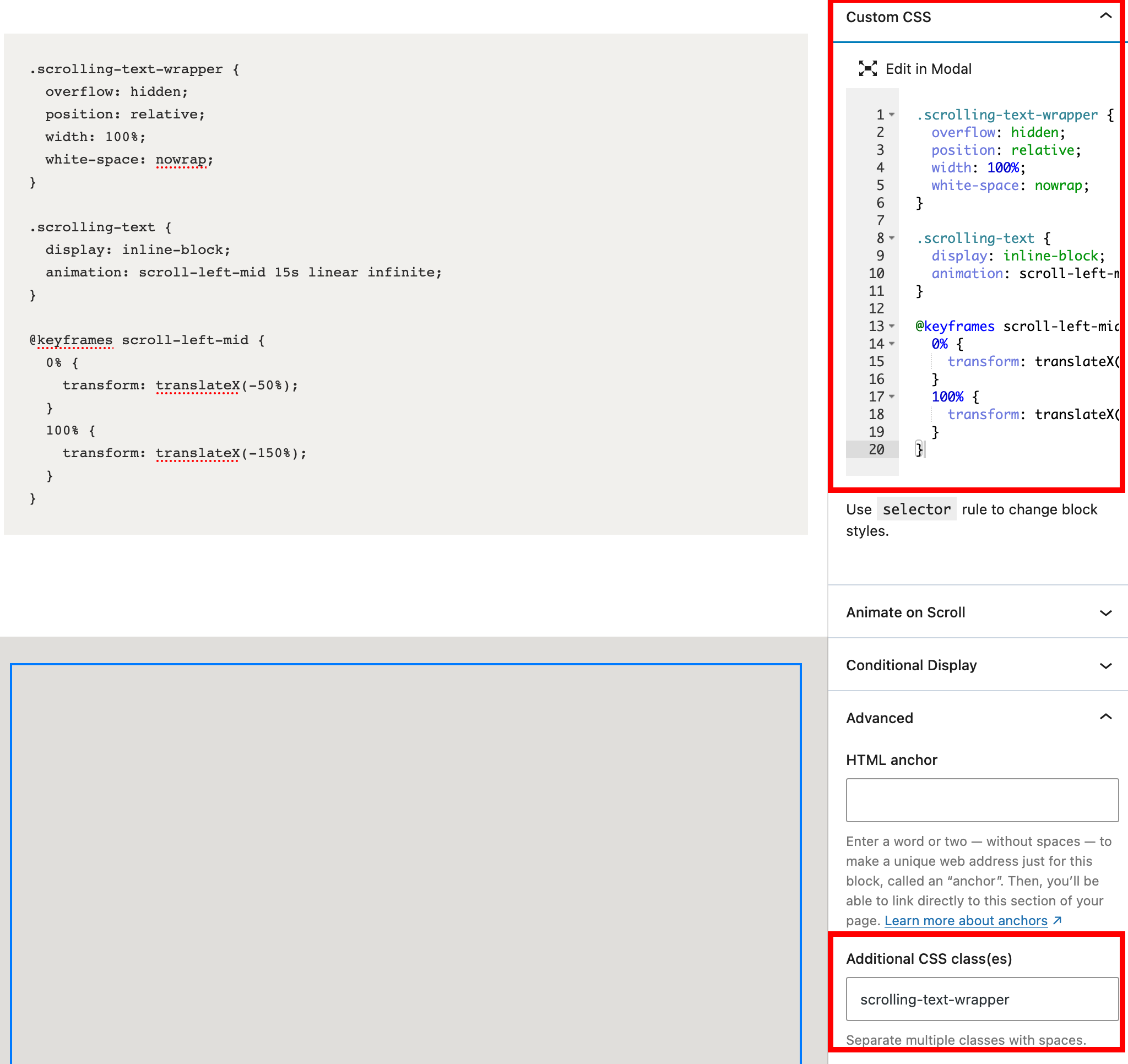
- Click on the Section
- Click the Advanced Tab
- Click the Custom CSS Section
- Paste the code below into that area
- Scroll Down to Additional CSS Classes and add scrolling-text-wrapper in that field.
.scrolling-text-wrapper {
  overflow: hidden;
  position: relative;
  width: 100%;
  white-space: nowrap;
}

.scrolling-text {
  display: inline-block;
  animation: scroll-left-mid 15s linear infinite;
}

@keyframes scroll-left-mid {
  0% {
    transform: translateX(-50%);
  }
  100% {
    transform: translateX(-150%);
  }
}
Step 5: Assign CSS Classes
6. Next, we’ll go back to our text block, navigate to the Advanced CSS classes area, and add scrolling-text to our CSS class.
7. TADA! You can save, preview or publish and see the results in action.

How to Add Scrolling Marquee Text How to Add Scrolling Marquee Text How to Add Scrolling Marquee Text How to Add Scrolling Marquee Text How to Add Scrolling Marquee Text How to Add Scrolling Marquee Text How to Add Scrolling Marquee Text How to Add Scrolling Marquee Text
Need a Kadence Theme?
I just released Sizzle – a WordPress Theme designed for food bloggers, but that can be used for any genre. It’s simple, clean, modern and ready to help your brand shine! Check it out here!

Custom Website Design
Need help customizing your Kadence WordPress website? I’d love to help – Holler at me!
Written By: Lindsey Riel
